Home Office Setup Ideas on a Budget: Best Guide 2026
You don’t need a spare room, a big budget, or a designer’s eye to work well from home.You need a few smart choices. That’s all.
Some people spend $3,000 on a fancy setup and still end up with a sore back by Friday.Others build a $300 corner that beats it. The difference isn’t money. It’s where the money goes.https://offixly.live
That’s what this guide is about. These home office setup ideas on a budget walk you through every decision, from picking a spot to choosing a chair to fixing your video call background.
Remote work isn’t a passing trend, either. WFH Research, which runs an ongoing survey of US working arrangements, has found that roughly one in four paid workdays are now done from home. That’s millions of kitchen tables, sofa corners, and wobbly desks.Here’s the problem. Most online advice just tells you to buy more stuff. A standing desk.
An ultrawide monitor. A $200 lamp. Those can be nice. They’re also not where you start.
Here’s the promise. By the end of this guide, you’ll know:
- How much a comfortable home office really costs ($150 to $500 covers most people)
- Which three purchases deserve your cash first
- Where to buy used gear without getting burned
- How to protect your body, your focus, and your productivity on a tight budget
Along the way, you’ll pick up practical work from home tips you can use this week, even before you buy anything.
One note before we start. Prices here are typical US ranges, and they move around, socheck current listings before you buy. I’ll also point out where a free fix beats a paid one.There are plenty.
Ready? Let’s build a home office you actually want to sit in.
Table of Contents
1. Start With a Plan: Budget, Work Style, and Priorities
Before you open a single shopping tab, spend ten minutes with a pen and paper. Planningis the cheapest part of any of these home office setup ideas on a budget. It also stops themost common mistake: buying three things that don’t fit the way you actually work.A short plan protects your productivity, too. You stop second-guessing every purchaseand start getting work done.
Decide Your Number First
Pick a hard cap. Not “as little as possible.” A real number.
Here’s how three budget tiers usually look:
| Tier | Total | What you typically get |
| Starter | $100–$150 | A surface you already own, laptop stand, external keyboard and mouse, desk lamp, cushion or towelfixes for your chair |
| Comfort | $250–$350 | Used ergonomic chair, proper desk, laptop stand, keyboard and mouse, lamp, basic cable control |
| Pro | $450–$500 | Everything above, plus a used monitor, headset,ring light or webcam, and a surge-protected powerstrip |
Most people land in the Comfort tier. It’s a good place to aim.
Know How You Actually Work
Your job decides your setup. Ask yourself:
- How many hours a day will I sit here? Six or more means the chair comes first.
- Do I take video calls? If yes, set aside money for light and sound.
- Do I use a laptop alone, one screen, or two?
- Do I need paper, files, or a printer?
- Do I share this space? Shared rooms need gear that packs away.
Here’s how that plays out. A customer support agent on a headset all day needs a good headset and a quiet corner. A freelance writer needs a comfy chair and a surface big enough for notes. A designer might need a second monitor. Same budget, different priorities.
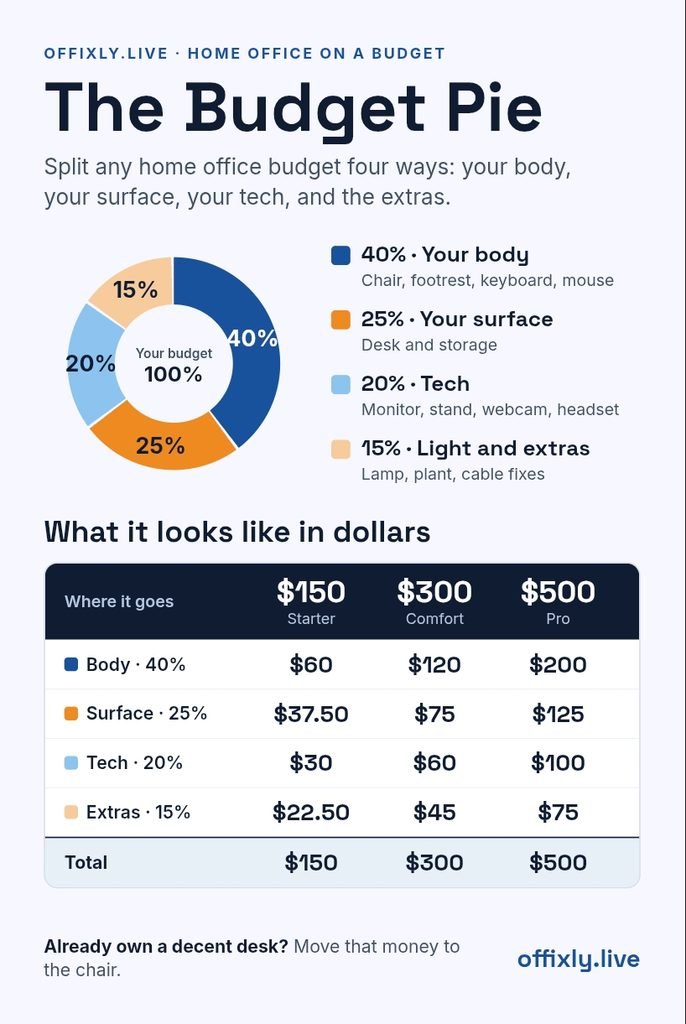
Use the 40/25/20/15 Split
Here’s a simple way to divide any budget:
- 40% for your body: chair, footrest, keyboard, mouse
- 25% for your surface: desk and storage
- 20% for tech: monitor, stand, webcam, headset
- 15% for light and extras: lamp, plant, cable fixes
On a $300 budget, that’s $120 for your body, $75 for your surface, $60 for tech, and $45 forlight and extras.
It isn’t a law. It’s a starting point. If you already own a decent desk, move that money to the chair.
Check What You Already Own
Look around before you spend a cent. You may already have:
- A dining table or an old desk
- A spare power strip or extension cord
- A stack of books that can become a monitor riser
- A lamp from the bedroom
- A wireless keyboard in a drawer
- A pillow that works as a seat cushion
Free beats cheap every time.
Ask Your Employer About a Stipend
Some companies reimburse home office costs or give a one-time allowance. A two-line email to your manager or HR could save you $200 or more. Ask before you buy, and keep your receipts.
2. Find the Right Spot(Even Without a Spare Room)
Where you work matters more than most people think. A great desk in a bad spot is still a bad setup.
Of all the home office setup ideas on a budget, choosing your spot well is the one that costs nothing.
Rank Your Options
From best to worst, here are the usual candidates:
- A spare room with a door. Best for focus and privacy. Not everyone has one.
- A bedroom corner. Works well, but try to face away from the bed.
- A living room nook. Good light, more noise.
- A closet office. Yes, really. Remove the door and slide in a narrow desk.
- The dining table. Fine for starting out, but packing up every day gets old fast.
If you remember only one rule, make it this: pick the spot with the fewest distractions, not the prettiest view. A window is great. A TV in the corner of your eye is not.
Run the Four-Point Spot Check
Stand in the space for five minutes and check these things:
- Light. Is there a window nearby? Can you place the desk so light comes from the side instead of straight behind your screen?
- Noise. Can you hear the TV, the street, or the neighbors? Noise is hard to fix on a budget, so spot it now.
- Outlets. Is power within reach? Extension cords across walkways are a trip hazard.
- Wi-Fi. Run a speed test at the exact spot, not in the living room.
Picture a desk tucked into a bedroom corner, 40 feet from the router with two walls inbetween. That’s a recipe for frozen video calls. Moving the desk a few feet, or adding a $15Ethernet cable, can fix it for good.
Small-Space Tricks That Cost Almost Nothing
- Use vertical space. Wall shelves hold supplies and free up the desktop.
- Try a fold-down wall desk. Wall-mounted drop-leaf desks often run $60 to $120 and disappear after work.
- Use a bookshelf as a room divider. It draws a visual line between “work” and “home.”
- Roll it. A rolling cart can hold your laptop, notebook, and charger. Wheel it out of sight at 5 p.m.
- Face a wall. It sounds odd, but a blank wall in front of you means fewer things to look at, and a cleaner video call background behind you if you turn the desk around.
Renter-Friendly Fixes
- Removable adhesive hooks for headphones and cables
- Freestanding shelves instead of wall-mounted ones
- A tension-rod curtain to close off a nook
- A rug to protect floors from chair wheels
Create a Work Zone in a Single Room
Boundaries make remote work feel less messy. You don’t need walls to build them.
Use one object as your on-off switch. It could be a lamp, a candle, or a small desk plant.When it’s on, you’re working. When it’s off, you’re done. Your brain picks up the signal faster than you’d expect.You can also lay a rug under the desk so the “office” has a visible edge. Or keep a work-only playlist. Small crues add up.
3. Pick a Desk That Fits Your Space and Your Wallet
A desk doesn’t need to be fancy. It needs to be the right size, the right height, and steady enough that your coffee survives typing.
If you only follow one of these home office setup ideas on a budget when you shop for a desk, make it this: measure first, buy second.
What to Check Before You Buy
- Depth. At least 24 inches. Go for 30 if you use a monitor.
- Width. About 40 inches works for a laptop. 55 to 60 inches gives you room for a monitor, a notebook, and a mouse.
- Height. Most desks sit around 29 to 30 inches. That suits many people, but not everyone. Your elbows should rest near a right angle while you type. If you’re shorter,a footrest helps. If you’re taller, furniture risers under the legs can help.
- Stability. Give it a shake in the store or at the seller’s house. If it wobbles empty, it will wobble loaded.
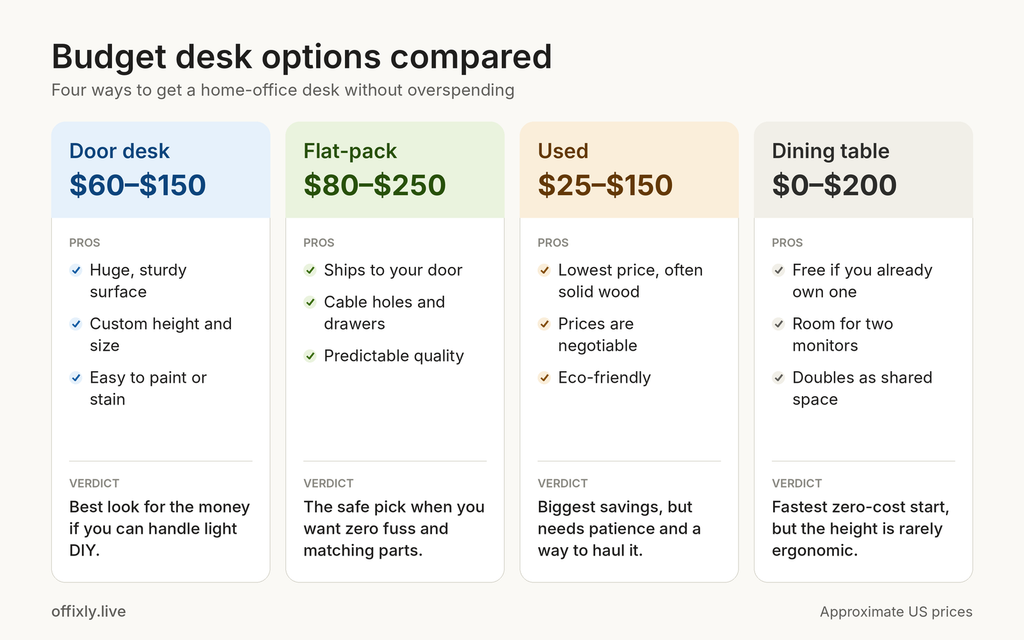
Option 1: The Door Desk ($40–$80)
A plain interior door laid across two filing cabinets, trestle legs, or saw horses is a classic for a reason. It’s flat, wide, and strong.
Sand the edges, add a coat of paint or sealant, and you’re done. If you already own a pair of low cabinets, you get storage thrown in.
Picture a $60 door on two secondhand filing cabinets from a neighbor. You end up with a30-inch-deep desk, two drawers, and money left for a chair.
Option 2: Flat-Pack Desks ($50–$150)
Big-box and flat-pack stores sell basic desks in this range. They’re light, simple, and easy to find.
Before you buy, check the weight limit, the surface depth, and the reviews for wobble. Plan on one to two hours of assembly. Tighten every screw again after a week, because they loosen.
Option 3: Buy Used ($20–$100)
Used desks are often the best deal in this guide. Check:
- Facebook Marketplace and Craigslist
- Estate sales and moving sales
- Office liquidators and school surplus sales
- Thrift stores
Solid wood desks turn up often and last for decades. Bring a tape measure, check thedrawers, look for water damage, and ask the seller to help you load it.
Option 4: Your Dining Table (Free)
It’s fine for starting out. Add a laptop stand, an external keyboard, and a small tray or basket that holds your work gear. At the end of the day, the whole kit goes into the basket and the table goes back to being a table.
Standing Desk Converters ($60–$200)
A converter sits on top of your current desk and lifts your keyboard and screen. It’s a nice extra, not a must-have.
If you buy one, don’t stand all day. Most ergonomics advice favors changing position often, whether that’s sitting, standing, or walking around. A sit-stand setup only helps if you actually switch.
Small Upgrades That Make Any Desk Better
- A desk mat ($15–$25) protects the surface and gives your mouse a smooth lane
- Under-desk hooks for your bag and headphones
- A clamp-on power strip so you’re not crawling on the floor for outlets
- A small riser shelf to lift a monitor and create storage below it
4. Get the Chair and Ergonomics Right
This is the section where I’d spend the most money. If you upgrade only one thing, make it the chair.
You’ll sit in it for hours. A bad one hurts. A good one disappears. Comfort drives productivity more than most gadgets do, because pain steals your attention.
Skipping the chair is the one corner you shouldn’t cut, even in the tightest home office setup ideas on a budget.
Buy a Used Office Chair ($75–$250)
This is the best value in the whole guide. Companies replace chairs in bulk, and the old ones flood the used market.
Brands like Steel case, Herman Miller, and Haworth often show up used at a fraction of the new price, though prices vary by model and condition. Look for these features:
- Adjustable seat height
- Lumbar support that you can raise or lower
- Adjustable armrests
- Tilt that locks or has adjustable tension
Before you pay, sit in it for five minutes. Check that the gas lift holds your weight, the foam isn’t crushed, the wheels roll, and the fabric isn’t torn.
Buy a Budget New Chair ($120–$250)
If you’d rather buy new, look for adjustable height, back support, and a breathable seat. Read the one-star reviews first, because they show how a chair fails after six months. Then check the return policy. A 30-day return window lets you test it for real.
No Money for a Chair? Fix What You Have
- A rolled towel behind your lower back adds support
- A firm cushion raises a seat that’s too low
- A box or a stack of books works as a footrest
- A pillow behind your back can fill a gap
These aren’t forever fixes. They’re bridge fixes until you can afford the real thing.
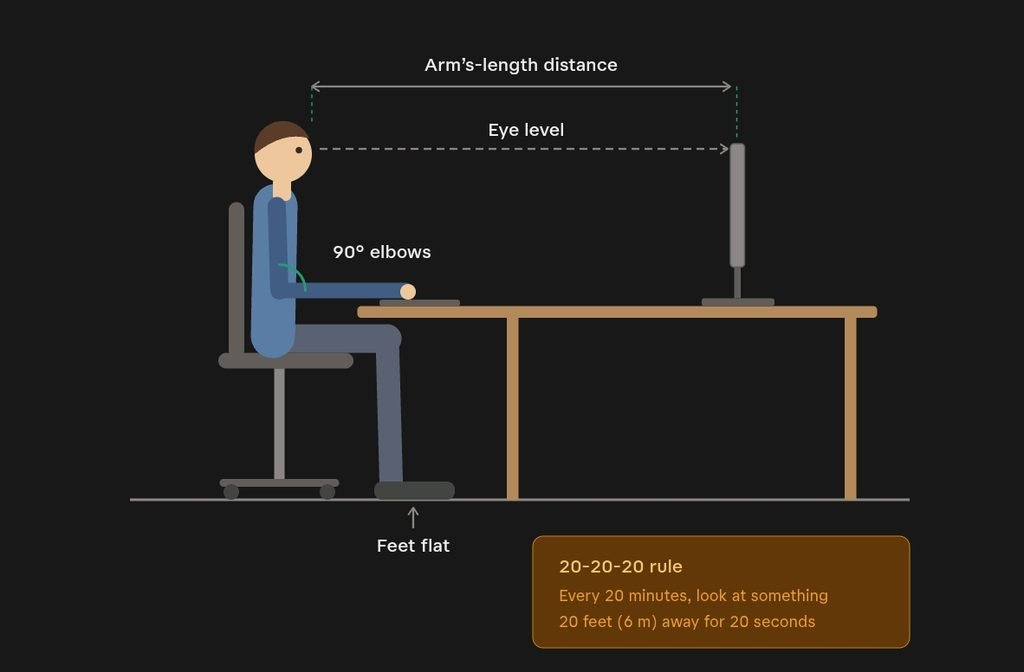
Set Up Your Body: The Simple Checklist
This checklist follows OSHA’s computer workstation guidance:
- Feet flat on the floor or a footrest
- Knees about level with your hips, or a little lower
- Back supported by the chair
- Elbows near a right angle, shoulders relaxed
- Wrists straight, not bent up or down
- The top of your screen at or slightly below eye level
- The screen about an arm’s length away, which OSHA puts at roughly 20 to 40 inches
The Monitor Height Hack
If you use a laptop, the screen sits too low and the keyboard sits too high. That combo strains your neck.
Here’s one of the most useful work from home tips for your neck: raise the screen and lower the keyboard. Put the laptop on a stand or a stack of books, then add a separate keyboard and mouse. It costs $30 to $60, and it’s the single best upgrade for laptop users.
Protect Your Eyes
The American Academy of Ophthalmology recommends the 20-20-20 rule. Every 20minutes, look at something 20 feet away for 20 seconds. Set a repeating timer on yourphone. You’ll feel the difference after a week.
Also reduce glare, and match your screen brightness to the room.
Move More
Stand up every 30 to 60 minutes. Stretch, walk to the kitchen, refill your water. Shortbreaks keep your back and your mind fresher.
This is general information, not medical advice. If you have ongoing pain, talk to a doctor orphysical therapist.
5. Buy Only the Tech You Need
Tech is where budgets go to die. It’s easy to overbuy. Stick to what your work actually needs.
Among all the home office setup ideas on a budget, tech is the category where “skip it” is often the smartest advice.
The Must-Haves ($60–$120 Total)
A Laptop Stand ($20–$35)
It lifts your screen to eye level. Pair it with a separate keyboard and mouse, and your neckwill thank you.
An External Keyboard and Mouse ($30–$60)
Wired sets cost less and never need batteries. Wireless sets are fine too. Pick a mousethat fits your hand. If you can, try one in a store before you order.
A Surge-Protected Power Strip ($12–$25)
It protects your gear and gives you enough outlets. Pick one with a long cord so you’re not stretching across the room.
The Nice-to-Haves
A Second Monitor (Used, $50–$120)
Used 24-inch monitors are everywhere. Check office liquidators, Marketplace listings, and manufacturer refurbished stores.
Before you buy, make sure the ports match your laptop. HDMI, USB-C, and Display Port aren’t interchangeable without adapters. Bring your laptop and cable to test for dead pixels and flicker.
A second screen helps most if you juggle spreadsheets, code, design files, or research. If you mostly write or take calls, one screen is plenty.
A Webcam ($30–$60)
Most laptop cameras are fine in good light. Light matters more than the camera itself. If your video still looks blurry, a basic 1080p USB webcam is a cheap fix.
A Headset ($25–$80)
A decent microphone makes you sound clearer than an expensive camera makes you look.Test it by recording a voice memo and playing it back. Closed-back headphones also cut background noise for you.
6. Where to Find Deals and What to Skip
The best home office setuphttps://calmdesksetup.com/home-office-on-a-budget/ ideas on a budget are rarely the newest ones. They’re theones you found at the right price.
Where to Buy Used
- Facebook Marketplace, Craigslist, and OfferUp. Best selection, biggest range of quality
- Office liquidators and surplus stores. Great for chairs, desks, and filing cabinets
- University and government surplus sales. Cheap, solid furniture
- Manufacturer refurbished stores. Good for monitors and keyboards, often with a warranty
- Thrift stores and furniture charity shops. Check often, because stock changes fast
- Buy Nothing groups and Freecycle. Free, if you’re patient